Find people
Search, filter and sort the Members page, see someone's details, and upcoming birthdays.
Staff For staff and admins.
The Members page lists everyone in your church, A to Z by first name. Search and the filters narrow it down.
Search and filterStaff
- Search (marker 1 on the screenshot) by name, phone or email. Every word you type must match, so quinn ham finds Quinn Hammond. For a phone number, type at least 3 digits, in any format: 555-0117 and (312) 555 both work.
- The sort button (marker 2 on the screenshot) switches between A to Z and Z to A.
- The filters (marker 3 on the screenshot) show only some people. Each one shows how many match your search.
| Filter | Who it shows |
|---|---|
| Everyone | Everybody (for admins, disabled accounts too). |
| Has account | People who have signed in, so their sign-in is linked to their profile. |
| No account | People who have never signed in. They still get texts and emails. |
| Staff (admins only) | People with staff permissions. |
| Admins (admins only) | People with admin permissions. |
| Disabled (admins only) | Accounts an admin turned off. Nobody else sees them in the list. |
The list draws 60 people at a time. Scroll down for more, or select Show 60 more at the end.
The marks after a name
The marks after a name (marker 1 on the screenshot): a check means the person has an account. Admins also see a shield for staff and a star for admins. Point at a mark to see what it means.
See someone's detailsStaff
On a computer or tablet, select a name. Their details show on the right:
- Whether they have an account (marker 1 on the screenshot) (Has account or No account yet). Admins also see Staff, Admin or Disabled.
- Their phone (marker 2 on the screenshot), email and birthday. Select the phone or email to call or write to them.
- Their groups (marker 3 on the screenshot). Select one to open the group.
- Open profile (marker 4 on the screenshot) opens their profile page. Double-clicking a name does the same.
- Edit (marker 5 on the screenshot) changes their details (Edit a member).
Upcoming birthdaysStaff
The top of the page shows everyone whose birthday is in the next 30 days, soonest first. Each one (marker 1 on the screenshot) says when: Today, Tomorrow, the day of the week if it's within a week, or the date. Today's birthdays are highlighted. Select a person to see their details (on a phone, their profile).
Only people with a birthday on their profile show here; disabled accounts don't. The section is hidden when nobody has a birthday coming up. To add one, see Edit a member.
On your phoneStaff
On a phone, open More in the bottom bar and select Members (marker 1 on the screenshot), the first item.
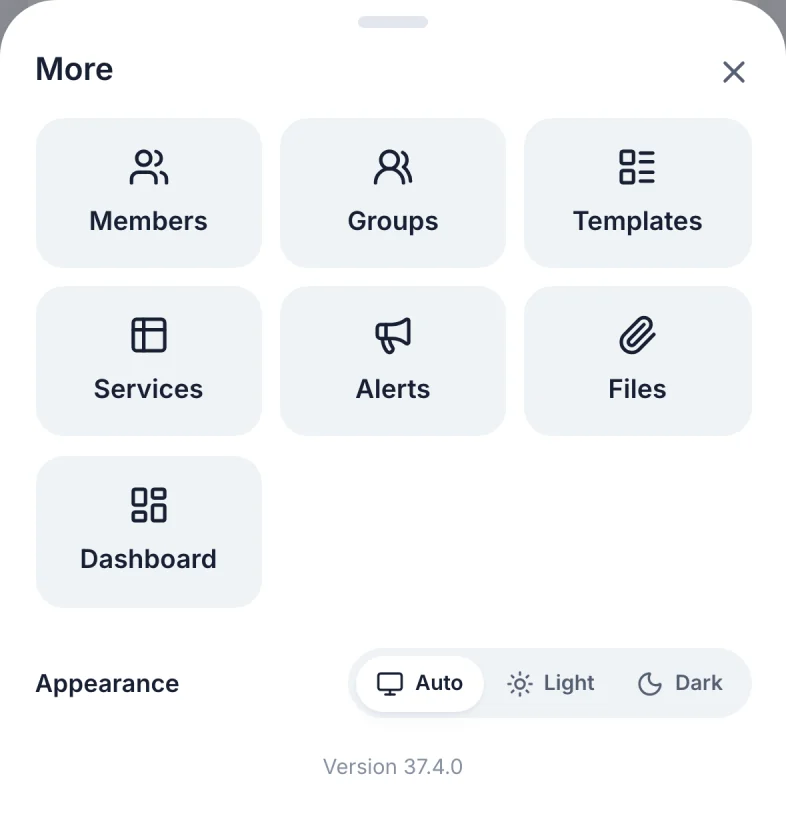
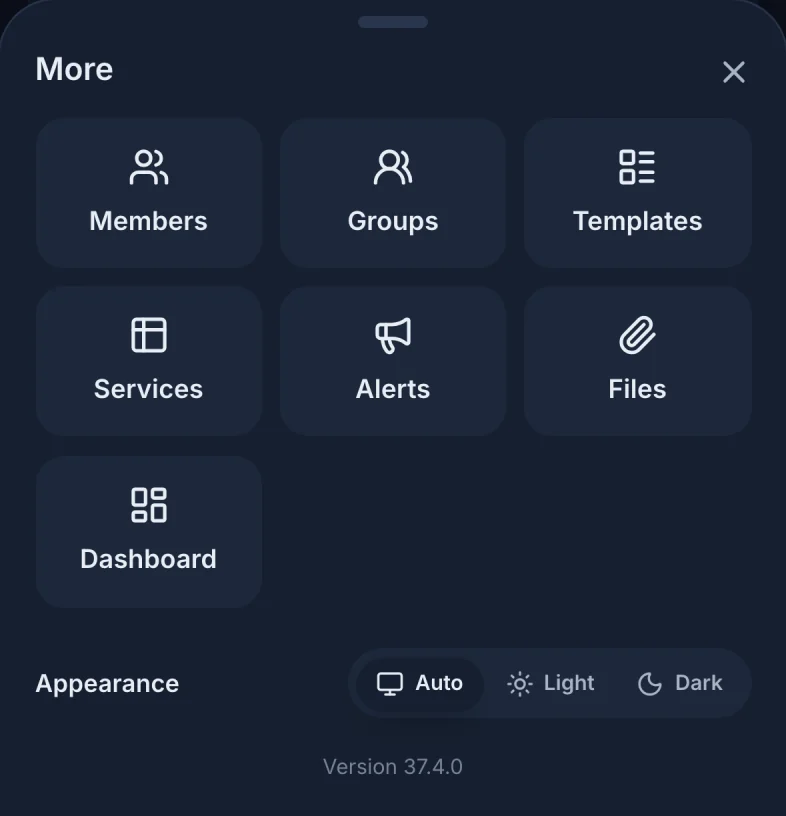
Search, the filters and birthdays work the same way. Tapping a name opens the person's profile (there's no details panel on a phone).
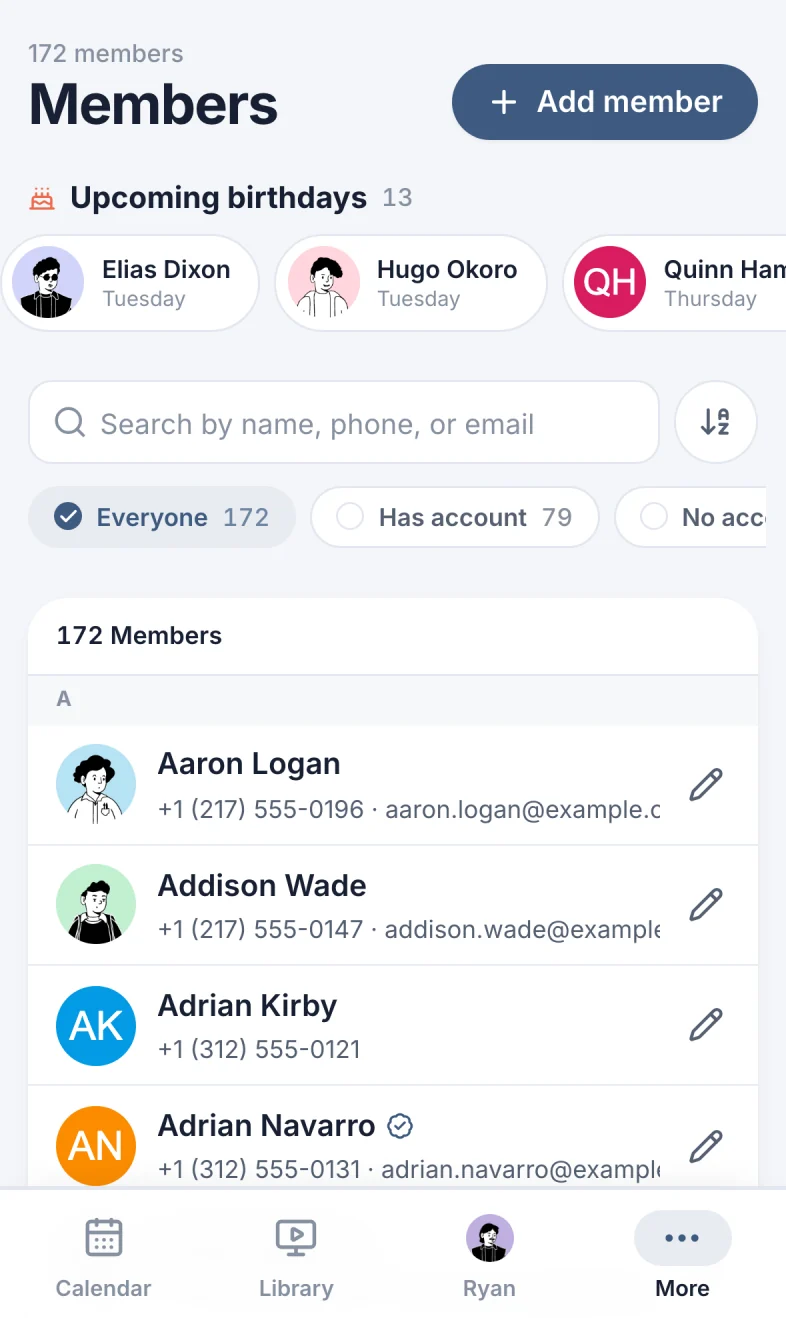
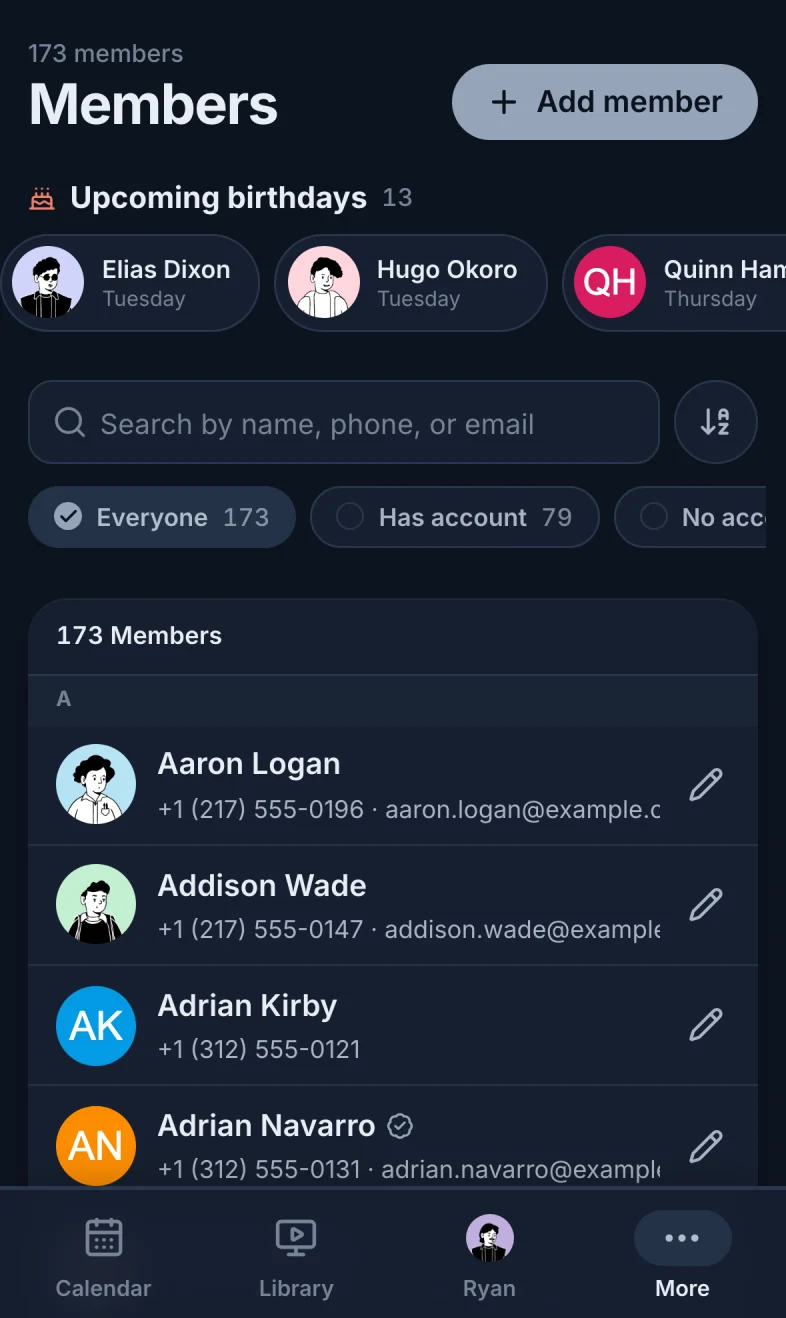
Tap the pencil (marker 1 on the screenshot) to edit someone. While you're on Members, the More tab (marker 2 on the screenshot) stays highlighted.
Still have a question?
Email us and we'll help you out.