About the Services page
Read the table, filter it, and see how it fits with events and the Library.
The Services page shows who serves at every service in a month, in one table: a row for each service, a column for each role, like Worship, Scripture Reading and Preaching. Staff plan a whole month here instead of opening each event. Everyone else can look up who's preaching or leading worship, and when.
Read the table
- Each day lists its services, one row each. A service (marker 1 on the screenshot) shows its start time, or a short name your admins gave it. Select it to open the event: staff get the event editor, everyone else the event page.
- Each column is a role (marker 2 on the screenshot). A role can stand for several spots on the event: Worship covers all the singers' rows of the order of service.
- Roles with notes show them in italics under the person (marker 3 on the screenshot), like the passage and the sermon title.
- A dash (marker 4 on the screenshot) means the role isn't part of that service. Here, the evening service has no Scripture Reading.
What the icons mean
The icon next to each name says whether that person has answered. Point at an icon to see what it means.
| Icon | What it means |
|---|---|
| Clock | Notified, no answer yet (marker 1 on the screenshot): they were texted or emailed and haven't answered. |
| Check | Confirmed (marker 2 on the screenshot): they said yes. |
| Empty circle | Not notified yet (marker 3 on the screenshot): nobody has asked them yet. |
| Cross, name struck through | Declined: they said no. Someone needs to take their place. |
Who can do what
| Who | What they can do |
|---|---|
| Everyone signed in | See the Services page. People who aren't staff see only public services (not private, restricted or hidden ones), and the page says View only. |
| Staff | Everything above, plus assign people and notes to upcoming services, text people to confirm, and see the change history. |
| Admins | Everything staff can do, plus choose which services and roles the page shows (Settings). |
The page is only for people who are signed in. It shows up in the menu once an admin has set it up.
Change month and filter
- Use the arrows on either side of the month (marker 1 on the screenshot) to go to the previous or next month, and Today (marker 2 on the screenshot) to come back to this month.
- Show (marker 3 on the screenshot) picks which services and roles you see (below).
- Staff also see Send SMS (marker 4 on the screenshot) (Text people to confirm) and Save (marker 6 on the screenshot). Admins see Settings (marker 5 on the screenshot) (Set up the Services page).
Show only some services or roles
- Select Show.
- Tick the services (rows) (marker 1 on the screenshot) and the roles (columns) (marker 2 on the screenshot) you want to see. At least one of each stays ticked.
- Show all (marker 3 on the screenshot) ticks every one again, in the section it's under (services or roles).
The button reads Show All when nothing is hidden, and the number of services and roles shown otherwise, like (6). Your choice is kept in this browser. To make a column wider or narrower, drag the right edge of its heading. Double-click the edge to reset it.
On your phone
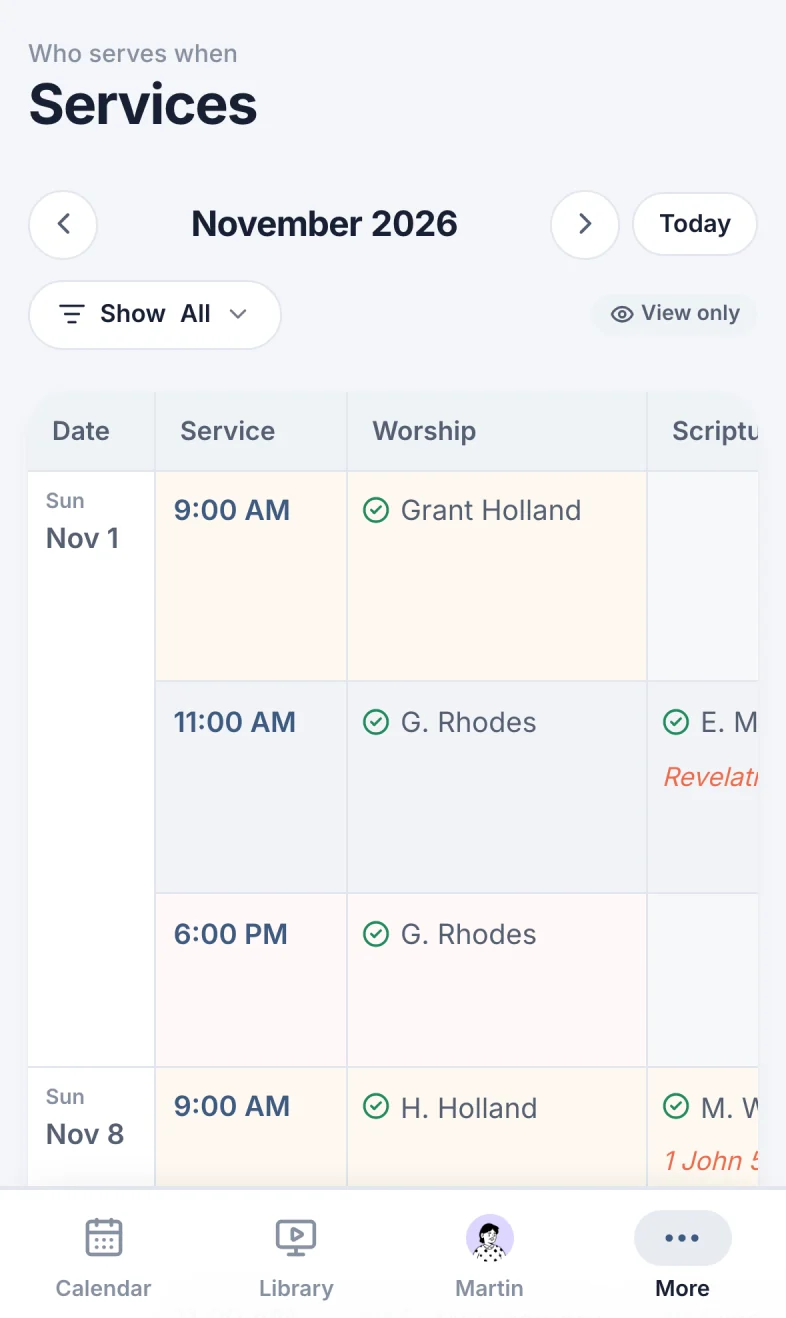
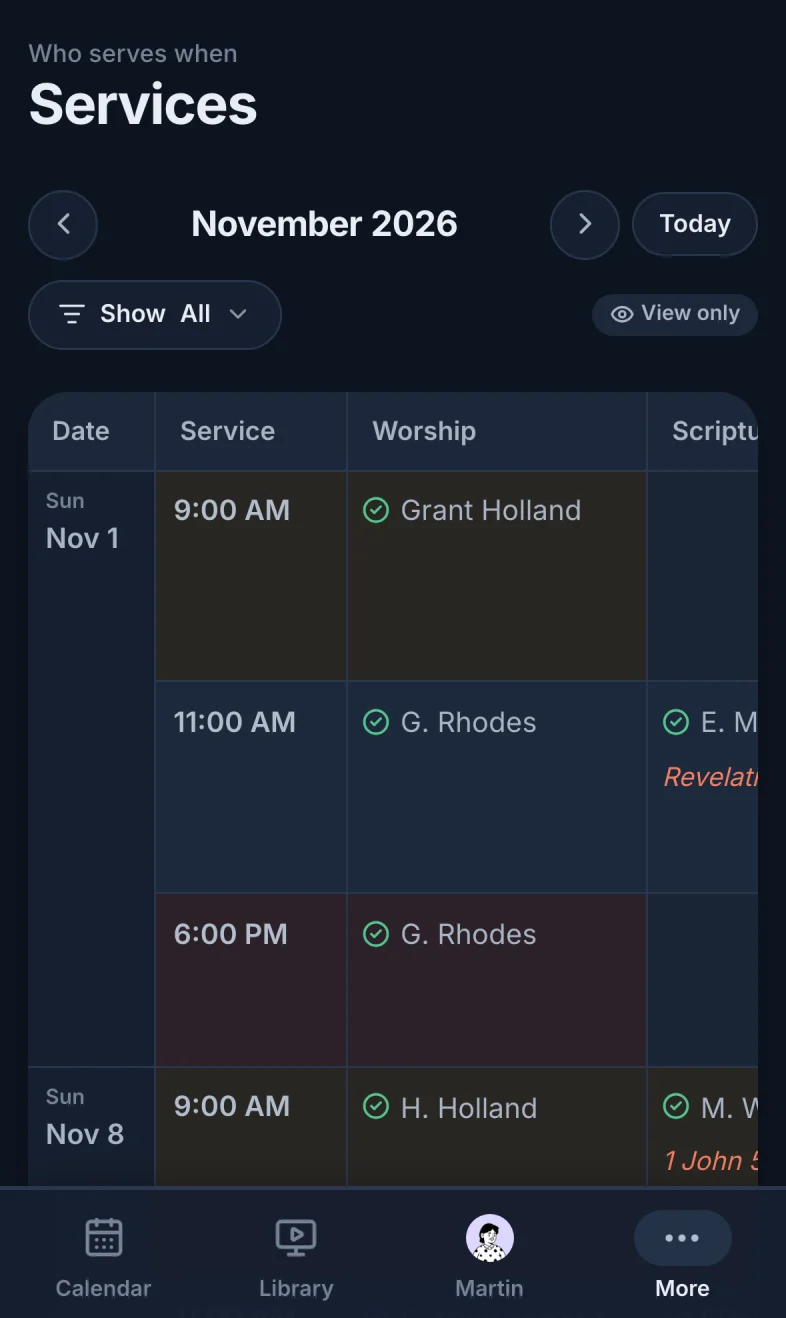
When your church has a Library, Services is under More (marker 2 on the screenshot). Otherwise it's one of the tabs at the bottom. The table scrolls sideways to show more roles. View only (marker 1 on the screenshot) means you can look but not change anything.
How Services fits with events
- It is the events. Each row is a real event, or a date its template will create. A change on Services is a change to that event, and a change on the event shows here.
- Linked spots stay together. Your admins link each role to rows of each service's template. Linked rows always hold the same people, whether you change them here, on the event, or in the template's The Planner. Declining one declines them all.
- No auto-rotation. Set up a rotation never change a linked role. People in these roles are set by hand, here. See Set up the Services page.
- The Library. For a recorded service, the About the Library takes the preacher from the event's Preaching row and the sermon title from its notes. Fill in Preaching here and the Library follows.
Don't see Services?
- Not in the menu? An admin hasn't set the page up yet. On a phone, also look under More.
- Asked to sign in? The page is only for people who are signed in.
- A service is missing? Check Show: a number instead of All means some are hidden. Private, restricted and hidden services are only listed for staff.
- A date is missing? Services lists the events of the month, plus future dates from the template's Automate: create events automatically schedule. A template without one only shows events that already exist.
Still have a question?
Email us and we'll help you out.