Browse and open events
Month, week, day and agenda views, Side by Side, opening an event, birthdays, and the phone layout.
Move through the months, switch views, and open an event to see its details. On a computer you pick the layout; phones and windows narrower than 1024 pixels always show the month with the day's events under it.
The Full Calendar
- Previous and Next (marker 1 on the screenshot) move a month (or a week, or a day, in those views). Today brings you back to today.
- Pick a view (marker 2 on the screenshot): Month, Week, Day or Agenda.
- Switch the layout (marker 3 on the screenshot) to Side by Side.
- Staff see Add Event (marker 4 on the screenshot) and the Events and Birthdays filters (marker 5 on the screenshot).
The four views
| View | What it shows |
|---|---|
| Month | The whole month, with the days of the months before and after that fill its first and last weeks. An event over several days stretches across them. +2 more opens a busy day in Day view. |
| Week | Sunday to Saturday, hour by hour, with each event's start and end time. |
| Day | One day, hour by hour. |
| Agenda | A list by date and time, starting from the date you're on. |
The heading (marker 1 on the screenshot) shows the dates you're looking at. Each event shows its start and end time (marker 2 on the screenshot).
Agenda lists the events by date, with their times, from the date you're on.
Side by Side
Side by Side puts a small month, the events of one day, and the event you pick next to each other. It's handy for going through a week of events one by one.
- Move between months with the arrows (marker 1 on the screenshot). Today brings you back to today.
- Select a day (marker 2 on the screenshot). The dots under each day are its events, in their colors (up to three, then a number like +1). The days of the next or previous month have grey dots.
- The events of that day show under the month (marker 4 on the screenshot), with how many there are.
- Select an event (marker 5 on the screenshot). It opens on the right.
Want more room for the list? The handle under the month (marker 3 on the screenshot) folds it into one week. The arrows then move a week at a time. Select the handle again to see the whole month. Scheduly remembers this on that device.
What each event shows
- A bar in the event's color, its name and where it is.
- Its start time and, under it, its end time.
- For an event over several days: its start time on the first day, all-day on the days between, and Ends with the end time on the last day.
Your role and whether you've answered show when you open the event.
Open an event
Select an event. On the Full Calendar it opens in a window; Side by Side, it opens next to the list; on a phone, it slides up from the bottom. You see what the event page shows: the schedule, who's serving, and its files.
- The event's name (marker 1 on the screenshot), with its date, time and privacy under it.
- If you serve on it, a card (marker 2 on the screenshot) lets you answer (Going?) or change your answer (Availability Changed?). See Accept or decline a role.
- Close it with X (marker 3 on the screenshot) or the Escape key.
Staff also see a pencil next to the name to edit the event. On the Full Calendar, staff can double-click an event to open it in the editor straight away.
Show birthdaysStaff
Staff can show members' birthdays on the calendar, to send a card or say happy birthday on Sunday. Birthdays come from the Birthday on each member's profile.
- Under the calendar, select Birthdays (marker 1 on the screenshot).
- Birthdays show in green, with the age the person turns (marker 2 on the screenshot). Select one to open their profile.
Turn Events off to see only birthdays. Both go back to the usual (events on, birthdays off) the next time you open the Calendar.
On your phone
The Calendar is the first tab at the bottom of the screen. It shows the month, then the events of the day you pick.
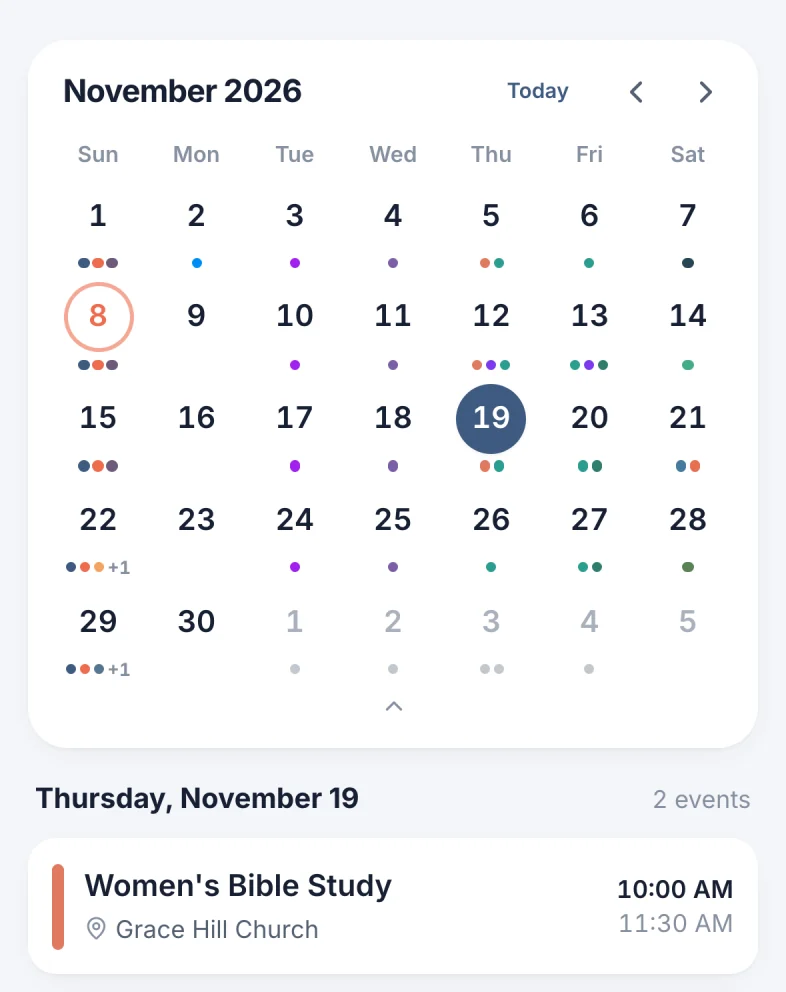
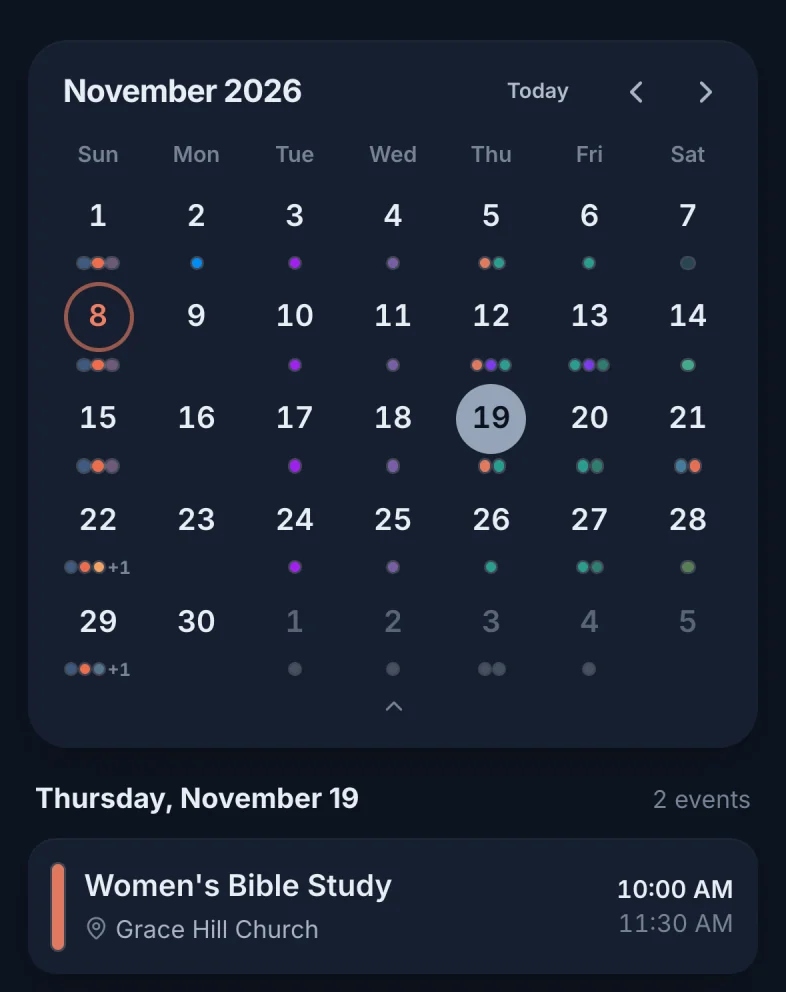
- Move between months with the arrows (marker 1 on the screenshot), or swipe left or right on the days.
- Tap a day (marker 2 on the screenshot) to see its events under the month.
- Tap the handle (marker 3 on the screenshot) to fold the month into one week.
An event on a phone
Tap an event and it slides up over the calendar.
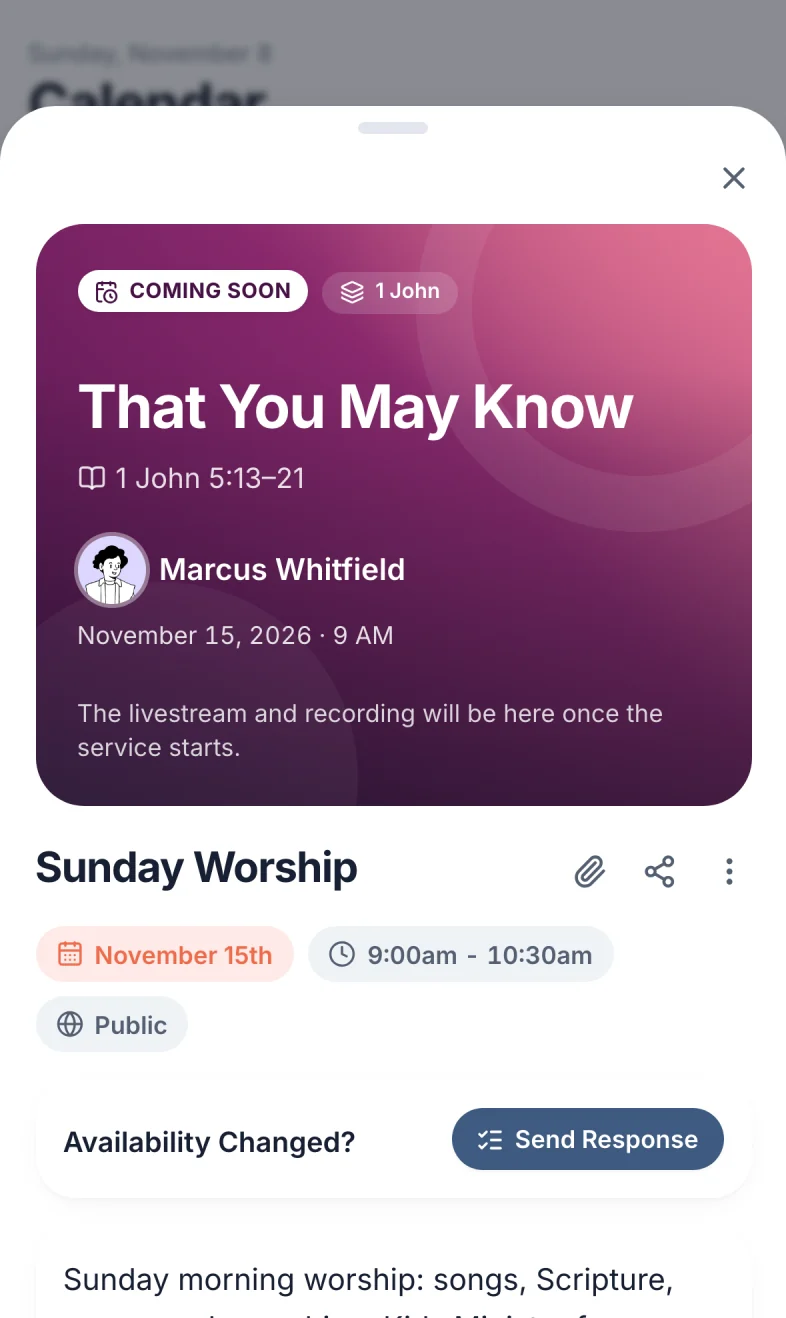
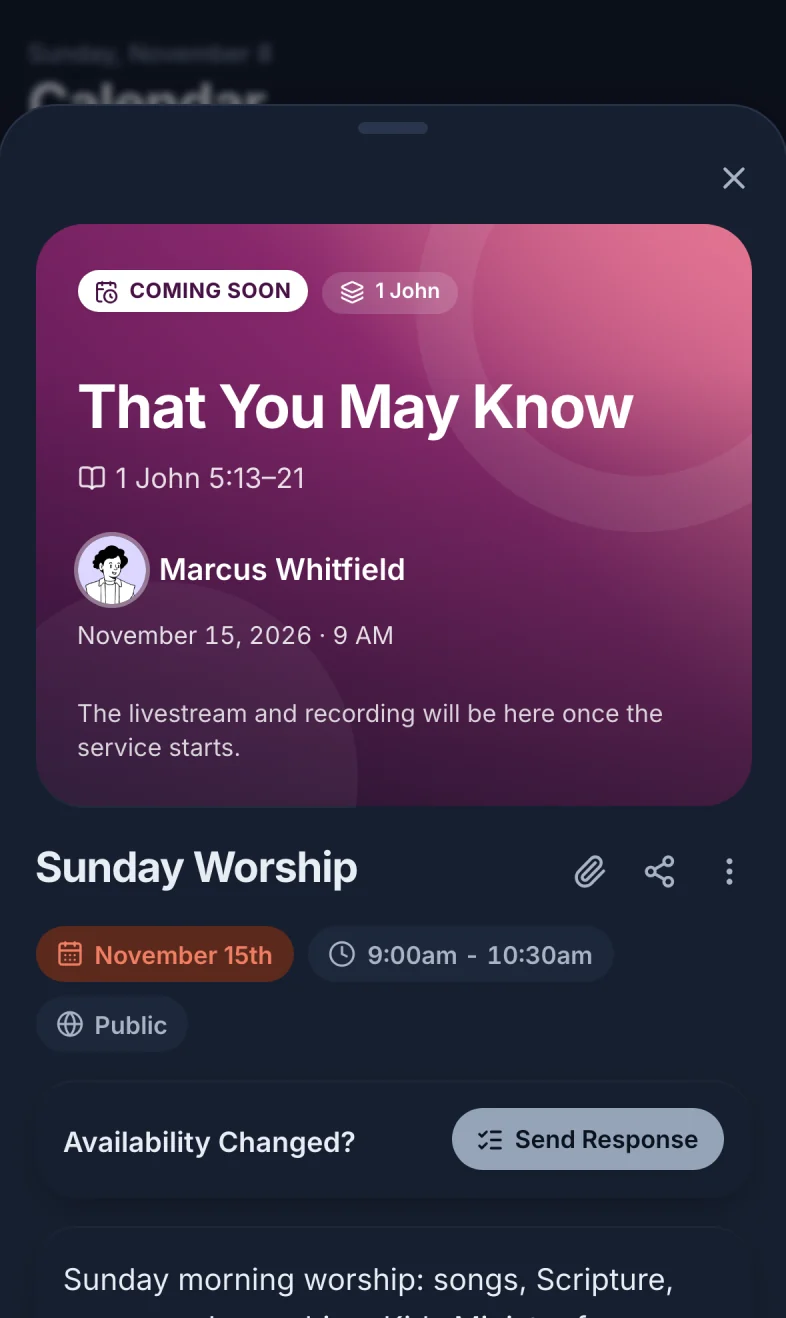
To close it, drag the handle (marker 1 on the screenshot) down, tap X (marker 2 on the screenshot), or tap outside it.
Still have a question?
Email us and we'll help you out.