About the Calendar
What the Calendar shows, its two layouts, colors, and who sees which events.
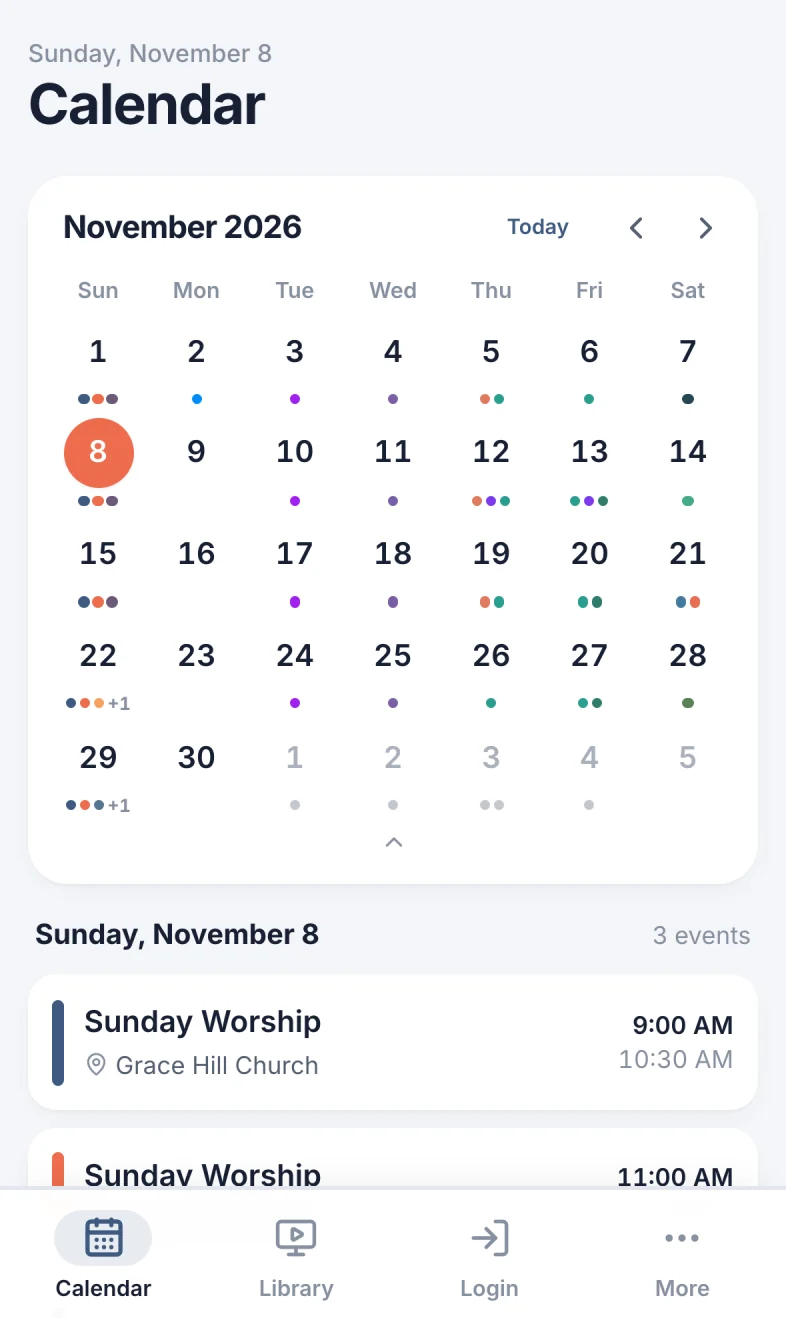
The Calendar is the first page you see in Scheduly. It shows your church's events: Sunday services, rehearsals, Bible studies, youth nights. Open any event to see its schedule, who's serving, and to answer if you're on it.
What's on the calendar
- Today's date is highlighted (marker 1 on the screenshot).
- Each event shows its name in its own color (marker 2 on the screenshot). Select it to open it.
- When a day has more events than fit, +2 more (marker 3 on the screenshot) (or another number) opens that day.
Times on the calendar are in your phone's or computer's time zone. Texts from Scheduly always give times in Eastern time (see What Scheduly sets up for you). The calendar keeps the date you're on in the page's address, so refreshing or going back keeps your place.
Two layouts
| Layout | What it shows |
|---|---|
| Full Calendar | A big calendar with Month, Week, Day and Agenda views. Events open in a window. The usual layout on a computer. |
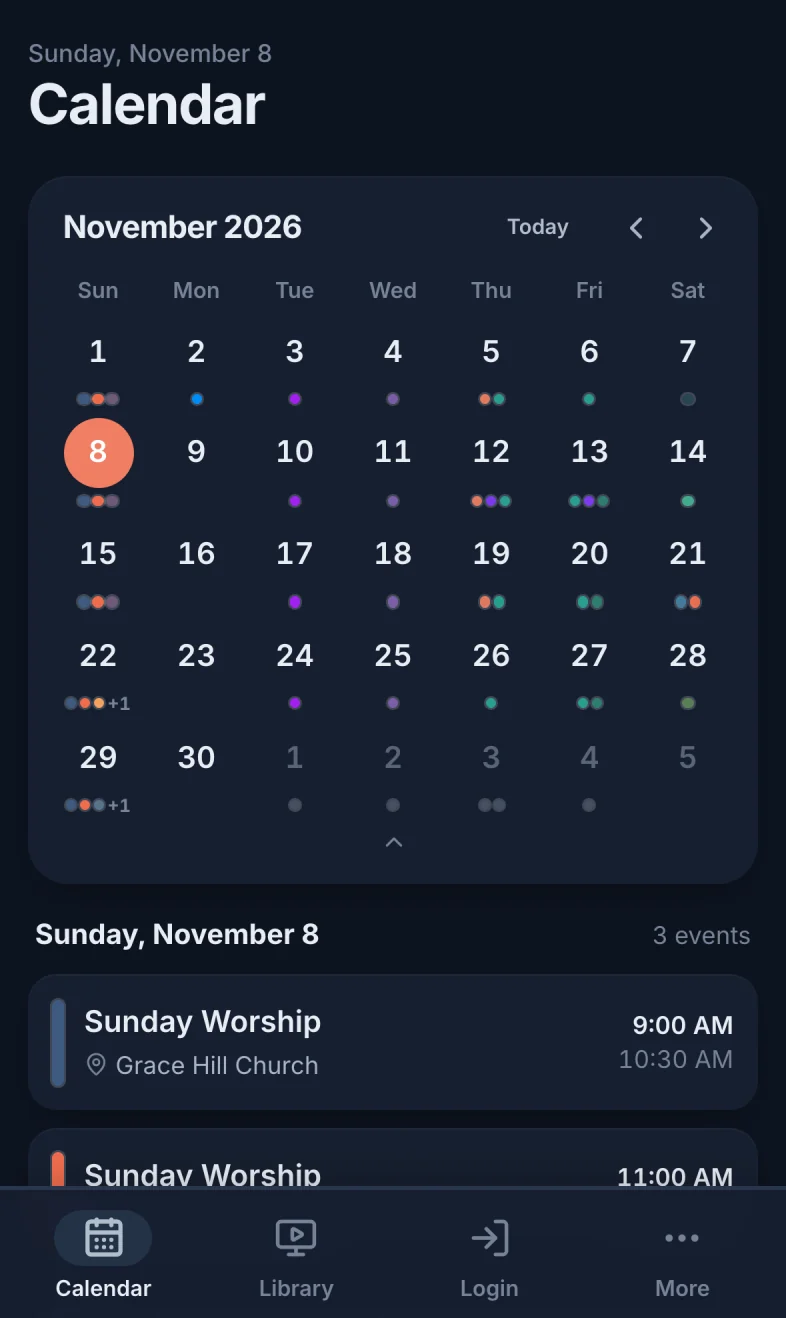
| Side by Side | A small month with a dot for each event, the day's events under it, and the event you pick next to them. Phones and windows narrower than 1024 pixels, which includes most tablets held upright, always use this layout. |
On a computer, switch between them with Full Calendar and Side by Side at the top of the page. Scheduly remembers your choice on that computer. See Browse and open events.
Event colors
Colors help you tell events apart at a glance: the 9 AM and 11 AM services, rehearsals, youth events. An event gets its color from its template. Staff set it in the template's Settings, under Appearance (see Settings and history).
- A new template color applies to events created from the template after the change. Events already on the calendar keep their color.
- Staff can give one event its own color: edit the event, open Settings, and change Color under Appearance.
- Birthdays (staff only) are green.
Who sees which events
Each event has a privacy setting, picked when it's created. It decides who finds it on the calendar.
| Privacy | Who sees it on the calendar |
|---|---|
| Public Event | Everyone, including visitors who aren't signed in. |
| Restricted Event | Everyone, including visitors. Only the people on the event and admins see its schedule, staff and attendance. |
| Private Event | Only the people on the event (on its schedule, staff or attendance), its owner and admins. |
| Hidden Event | Only its owner and admins. Staff use it for drafts. |
Signed in or not
Anyone with your church's Scheduly address can open the Calendar without signing in, for example from a link on your website. Signed out, it shows only public and restricted events, there's no Add Event, and Login (marker 1 on the screenshot) takes the place of your name. Sign in to see the private events you're on (see Sign in).
Add an eventStaff
Select Add Event at the top of the Calendar. It opens the editor for a new event. See Create an event. A new event shows on the calendar a few seconds after you save it.
Add Scheduly to Google or Apple Calendar?
Scheduly doesn't have a calendar feed you can subscribe to in Google Calendar, Apple Calendar or Outlook. Bookmark the Calendar page instead. To be reminded of the events you serve on, your church can have Scheduly text or email you (see Alerts: automatic reminders).
Still have a question?
Email us and we'll help you out.