About the Dashboard
Open the Dashboard and read its totals, the texts and emails chart, and storage.
Admins For admins.
The Dashboard is your church at a glance: how many events, people and files you have, how many texts and emails went out, what this month costs, and everything that changed lately. Only admins can open it.
Open the Dashboard
- On a computer or tablet, select Dashboard in the menu on the left.
- On a phone, select More at the bottom, then Dashboard.
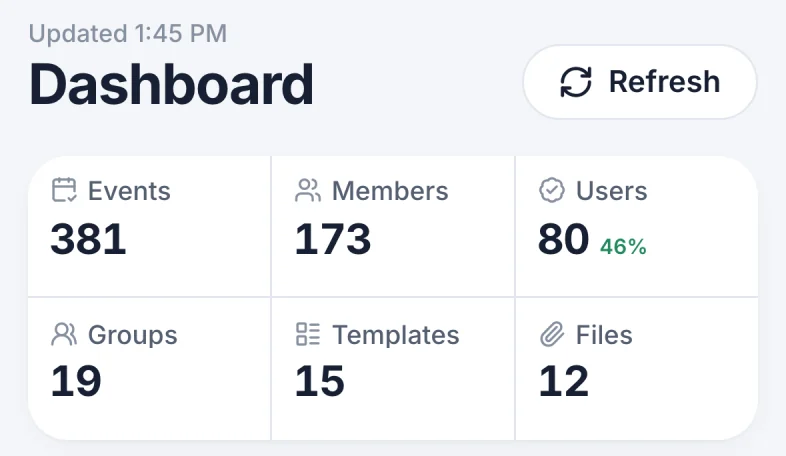
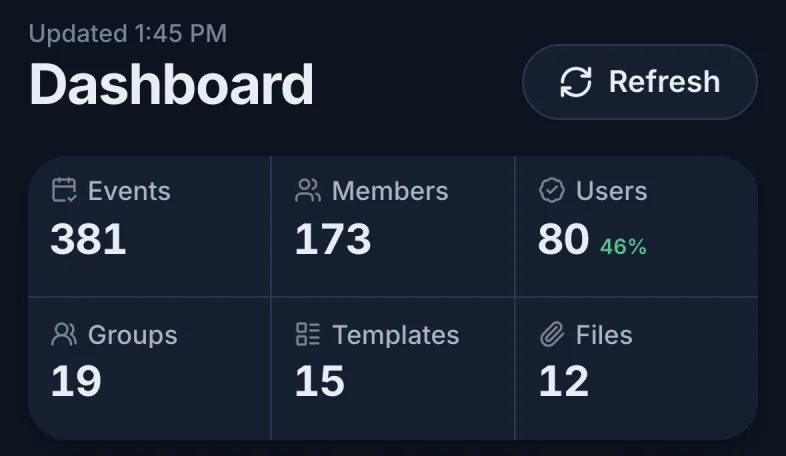
On a phone the page is the same, one card under the other. The totals take two rows of three.
Don't see it? It's only there for admins. Staff who aren't admins don't get a Dashboard (see Volunteers, staff and admins).
The totals
The numbers load when you open the page. Updated (marker 1 on the screenshot) shows when. Select Refresh (marker 2 on the screenshot) to load everything again, Activity History included.
| Total | What it counts |
|---|---|
| Events | Every event on your calendar, past and upcoming, including the ones your templates created. Removed events don't count. |
| Members | Every member profile, whether or not the person has ever signed in. Disabled accounts still count. |
| Users | Members who have an account they sign in with. The green percentage next to it is Users out of Members: how many of your people have signed up. |
| Groups | Every group. |
| Templates | Every event template. |
| Files | Every file and link, on an event or not. |
These are totals for all time. The time range further down changes the chart only. Big numbers are shortened: 1,240 shows as 1.2k. The percentage (marker 3 on the screenshot) is rounded to a whole number.
Texts and emails sent
The Texts and emails chart (Credits Usage on older plans) shows how many texts and emails Scheduly sent for your church in each billing period. It counts event reminders and alerts: the messages that count toward your plan.
- Pick how far back to look (marker 1 on the screenshot): 6 mo, 1 yr or 2 yr. It starts at 2 years on a computer and 6 months on a phone.
- Switch between Chart and Table (marker 2 on the screenshot).
- The totals (marker 3 on the screenshot) add up every period in the range. Hover over a pair of bars to see that period's numbers.
Each pair of bars is one billing period: a month that starts on the day of the month your plan renews. Below the chart, Latest period started gives the start of the current one, which is still filling up.
What's an SMS segment?
Texts are counted in segments, the way phone carriers bill them. A text of up to 160 characters is one segment. A longer one is sent in parts of up to 153 characters, and each part counts. A text with an emoji or with letters outside the basic Latin alphabet (like Cyrillic) holds fewer characters: 70 in one segment, 67 per part. Your plan's included texts are segments too.
As a table
Select Table to read the exact numbers for each billing period.
File storage
The File Storage card shows how much of the 10 GB included with your plan your church's files use, and which types of files take the most. See Check how much storage is used.
Your plan and Activity History
- The This month card shows what this month costs on top of the $29 plan, and the spending cap. See Your plan, this month's use and the spending cap.
- Activity History at the bottom lists every change, text and reply in your church. See Activity History.
Numbers look off?
- Users seems low. It only counts people who created an account and signed in. Members added by staff who never signed in count as Members, not Users.
- Events seems high. It includes every past event since your church started, and every upcoming event your templates have already created.
- The chart says No texts or emails yet (No Credit Usage on older plans). No reminders or alerts went out by text or email in that time range. Pick a longer range.
- The chart and This month don't match exactly. The chart is what your church's Scheduly counted as it sent; This month is what billing counted. Your invoice follows This month.
- A message says it could not load. It shows as a red message at the top of the page, for example Could not load credits: …, or inside a card, for example Billing is unavailable right now. Try again in a few minutes. Wait a few minutes and select Refresh. If it keeps happening, email us at schedulyevents@gmail.com.
Still have a question?
Email us and we'll help you out.