Find and join a group
A group's page, joining, asking to join, and leaving, on a computer or a phone.
Every group has its own page: what it's about, who's in it, and the events it serves on. From there you can join it, ask to join, or leave.
A group's page
Select a group on the Groups page or on someone's profile.
- About (marker 1 on the screenshot): the group's description.
- Upcoming and Previous (marker 2 on the screenshot): the next 5 and the last 5 events that use this group (signed in only). Select one to see it. The owner and admins also see History.
- Members (marker 3 on the screenshot): select a face to open that person's profile.
- Additional Info (marker 4 on the screenshot): the address (it opens in Google Maps), the owner, the privacy and when the group was created.
- Tags (marker 5 on the screenshot): select one to see every group with it.
- Leave group (marker 6 on the screenshot) once you're in (and, for staff and admins, Edit group).
Join a group
Open the group and select the button at the top. It depends on the group's privacy:
- Public Group: select Join group. You're in right away. You get a welcome email and the owner gets an email that you joined.
- Restricted Group (marker 1 on the screenshot): select Request to join (marker 2 on the screenshot). The owner gets an email and decides.
- Private Group: there's no button. Ask a staff member to add you.
Not signed in? Select Login to Join.
Wait for an answer
The page shows Request pending (marker 1 on the screenshot). When the owner accepts, you get a welcome email and the group shows You're a member. If they turn it down, the request just goes away (no email). Changed your mind? Select Cancel request (marker 2 on the screenshot), then confirm.
Leave a group
- Open the group and select Leave group.
- Select Leave Group to confirm (or Stay).
No one is emailed. If the group is linked to roles on upcoming events, you're taken off those roles too.
On a phone
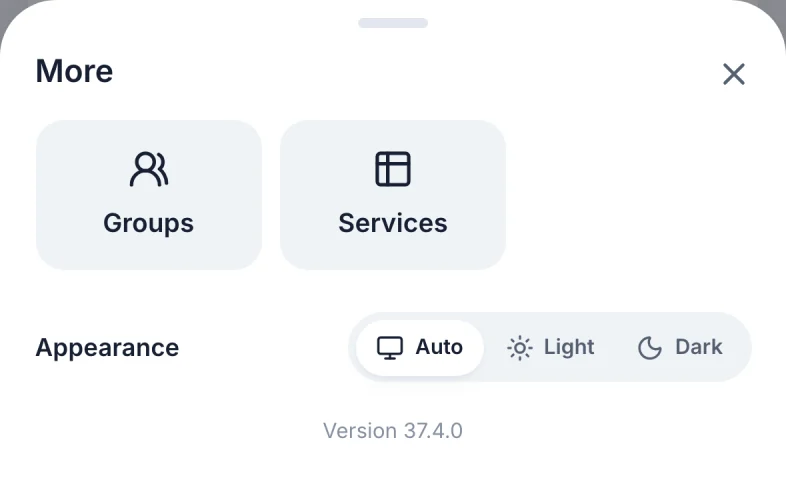
On a phone, open More in the bottom bar and select Groups (marker 1 on the screenshot). A group's page shows the same sections in one column, with the join or leave button full width under the name.
Don't see a group?
- It's private. Private groups only show to their members, their owner and admins. Its link doesn't open for anyone else either.
- A search or tag is on. Clear the search box and select Clear next to the tags.
Why is Upcoming empty?
- A group only lists events where one of its roles is linked to the group. Events its members serve on by themselves aren't listed.
- You need to be signed in.
- For a restricted or private group, only its members, its owner and admins see its events.
Still have a question?
Email us and we'll help you out.