The event page
Schedule, staff, attending, files and comments, and who can see what.
Every service, rehearsal or gathering in Scheduly is an event. Its page has everything about it in one place: when and where it is, the order of service, who is serving in each role, who is coming, the files, and comments. It's also where volunteers say whether they can make it.
Open an event
- From the Calendar: select an event to see it next to the calendar.
- From the link in a text or email Scheduly sent you. It opens the event as you, so you can answer without signing in.
- From a link someone shared. Anyone can copy a public event's link with Share Event.
The top of the page
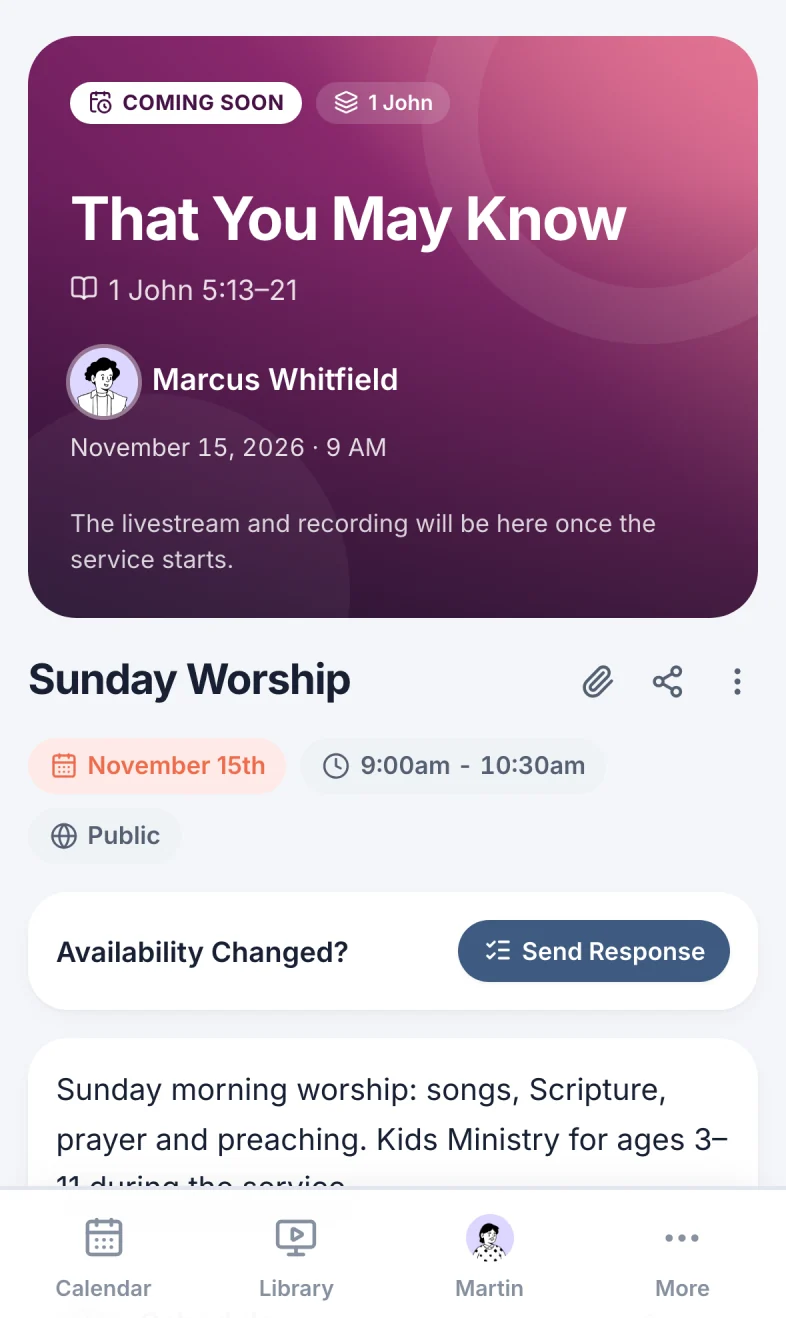
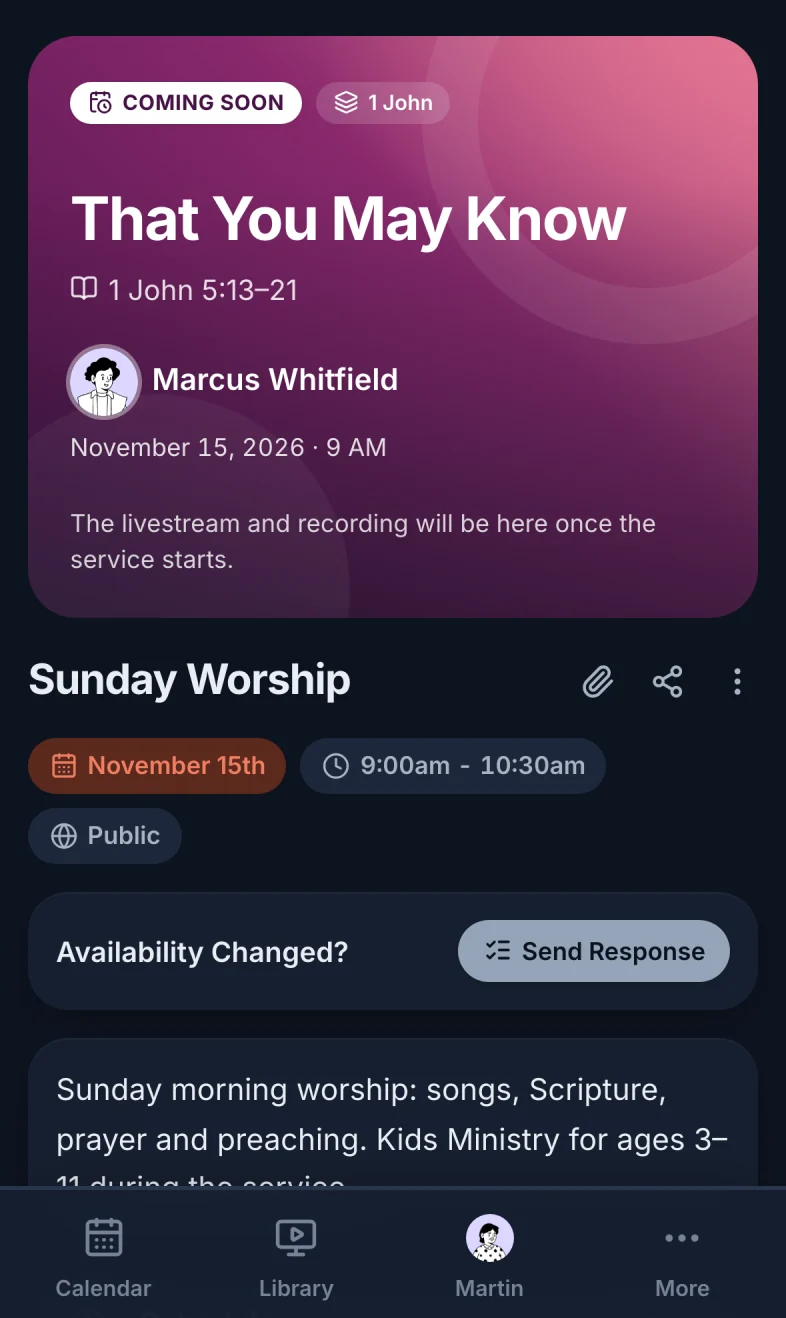
- The date and time (marker 1 on the screenshot), and who can see the event (marker 2 on the screenshot) (see Who can see an event).
- The buttons on the right (marker 3 on the screenshot), from left to right:
- Edit Event (the pencil) opens the event editor. Staff and admins only.
- Add files (the paperclip), for people who can add files to this event (Add files to an event).
- Share Event copies the event's link. Only on public events.
- More Options (⋮): see More options.
- The Going? card (marker 4 on the screenshot) is where you answer. When you're serving, it reads Availability Changed?. See Accept or decline a role.
Under it come the event's description, then its sections. Select a section's title to fold it away. A service streamed on YouTube shows its video (or a Coming soon card for the sermon) above the name.
Schedule, Staff and Attending
- Schedule: the order of service, with times, notes (song titles, Scripture) and who leads each part.
- Staff: the roles behind the scenes, like Slides, Sound or Greeters, and who serves in each.
- Attending: who is coming. Everyone on a role is on it too.
The badge on each person's picture shows their answer:
| You see | It means |
|---|---|
| A green check (marker 1 on the screenshot) | They said yes. |
| A clock (marker 2 on the screenshot) | They were sent a text or email and haven't answered yet. |
| No badge, name in gray | They haven't been asked yet. |
| A red cross, name struck through (marker 3 on the screenshot) | They said no. They stay listed so you know who was asked. |
| A speech bubble (marker 4 on the screenshot) | Their comment. Only admins and the event's owner see it here: select it to read it. |
In Attending, the pictures are the people going. Select Going (marker 1 on the screenshot), Pending (marker 2 on the screenshot) or Not Going to see the list of names, with when each person answered or was asked.
Location, files and comments
- Location: the address. Select Show map to see it on a map.
- Files: the bulletin, slides, manuscript and sheet music you're allowed to see. See Open and download files.
- Comments: questions and notes for everyone on the event. See Comments.
More options
- Hide participants (marker 1 on the screenshot) shows only your own name under each role. Select Show participants to see everyone again.
- Show Details (marker 2 on the screenshot) (admins) shows who created the event and who changed it last, and under each person when they answered and were texted or emailed.
- Save as new Event (marker 3 on the screenshot) and Save as new Template (marker 4 on the screenshot) (staff) copy this event. See Copy an event.
On your phone
The event page is the same on a phone, in one column. Volunteers don't see the Edit Event pencil: only staff and admins do.
Who can see an event
Each event has a privacy setting. Staff choose it in the editor's Settings tab, and the chip under the name shows it.
| Privacy | Who sees it |
|---|---|
| Public | Anyone, signed in or not, with the full schedule, staff and attendance. Anyone signed in can say they're going. |
| Restricted | Anyone sees the event, but only the people on it (and admins) see the schedule, staff and attendance. Only they can answer. |
| Private | Only the people on the event, its owner and admins. |
| Hidden | On the calendar only for its owner and admins. Use it for drafts. People on it can still open it from a link. |
Who can do what
| Who | What they can do |
|---|---|
| Everyone | See public and restricted events. Signed out, the Going? card shows Login. |
| Anyone signed in | Comment on events they can see, and say they're going to a public event. |
| People on the event | Answer for their roles and add files. |
| Staff | Create events, edit the events they can see, copy events, see an event's history. Private and hidden events they're not on and don't own stay closed to them. |
| The event's owner | See its history and the comments people left when they answered. Delete it (if they're staff). |
| Admins | Everything, on every event, including private and hidden ones. |
Still have a question?
Email us and we'll help you out.