About your profile
Open your profile, what's on it, and what you see on someone else's.
Your profile is your page in Scheduly. It lists what you're scheduled for, the requests you haven't answered yet, and the dates you're away. It also holds the phone number and email Scheduly uses to reach you.
Open your profile
On a computer, select your picture and first name (marker 1 on the screenshot) at the bottom of the menu on the left. On a tablet, the menu shows only your picture.
What's on it
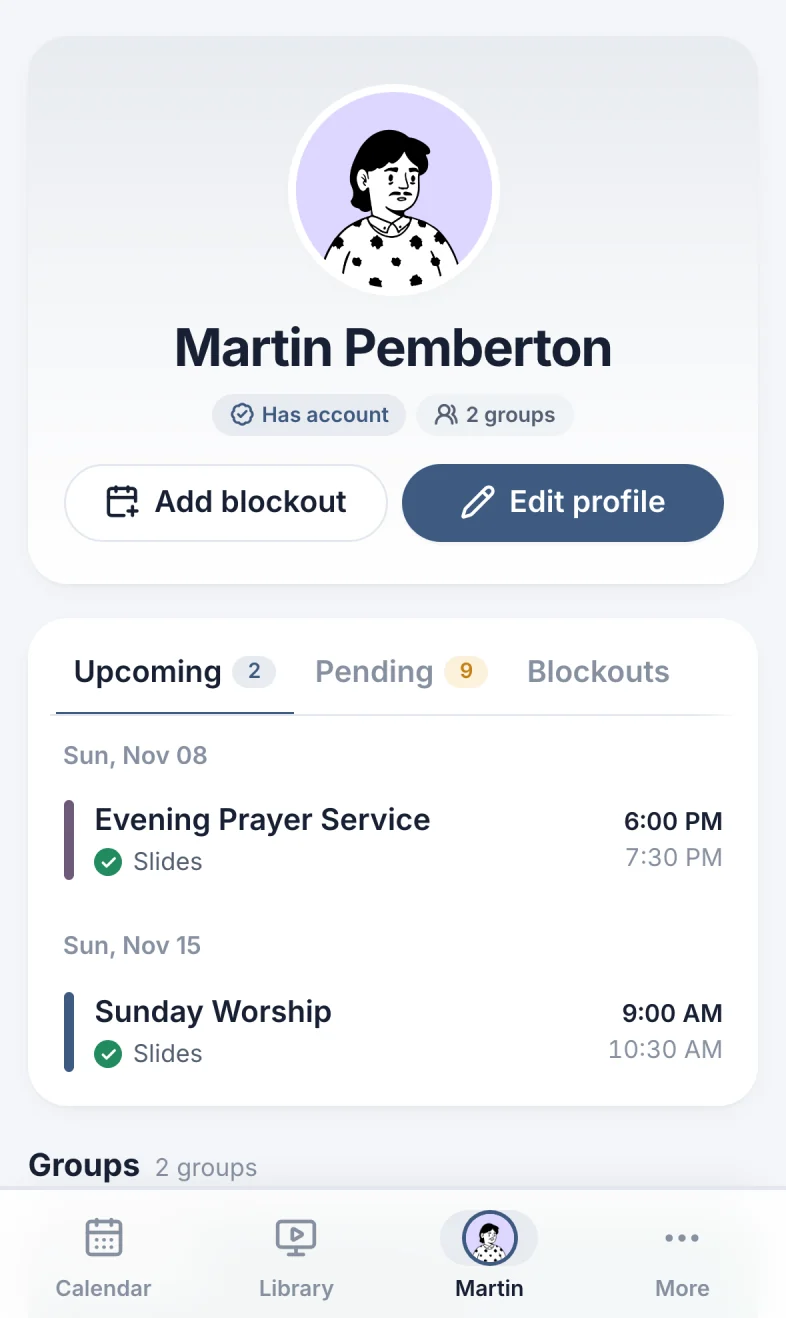
- Badges (marker 1 on the screenshot) under your name: Has account (you can sign in), Staff, Admin, and how many groups you're in.
- Add blockout (marker 2 on the screenshot): mark days you're away. See Blockouts.
- Edit profile (marker 3 on the screenshot): change your name, picture and contact info. See Edit your profile.
- The tabs (marker 4 on the screenshot): Upcoming (what you said yes to), Pending (requests you haven't answered) and Blockouts. See Your upcoming and pending events.
- Groups: the groups you're in. Select one to open it.
On the right (below, on a narrow screen):
- Contact Info (marker 1 on the screenshot): your email and phone. Scheduly texts this phone number and emails this address.
- Additional Info (marker 2 on the screenshot): your address, birthday, the date you joined and gender, when they're filled in.
- Sign Out (marker 3 on the screenshot), with the app's version number under it (handy if you ever email us about a problem).
On your phone
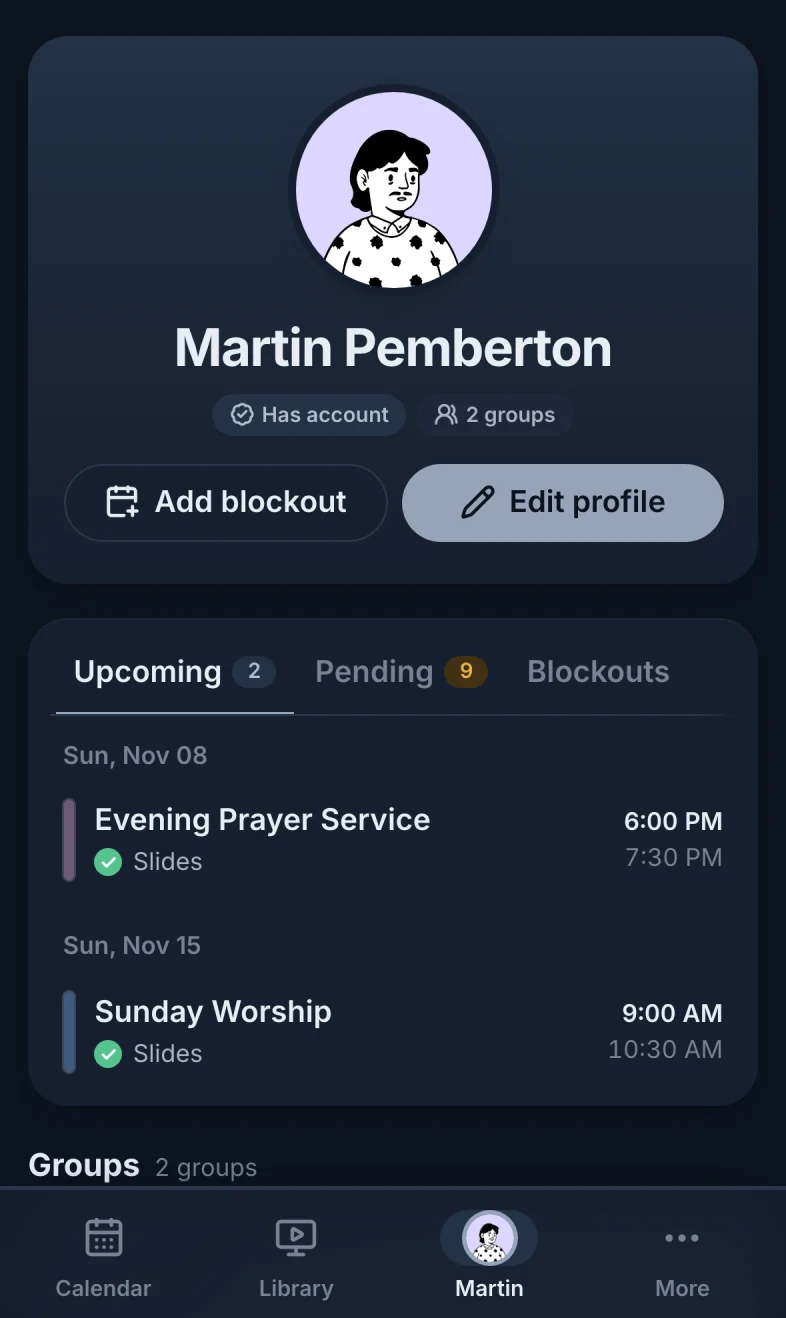
Your profile is the tab with your picture (marker 1 on the screenshot) in the bottom bar, before More. The same parts are stacked: your name, the buttons, the tabs, then groups and contact info.
Someone else's profile
Select a person's picture on an event or in a group to open their profile. Staff can also open anyone from the Members page (About Members). What you see depends on your permissions:
| Who | What they see on someone else's profile |
|---|---|
| Everyone signed in | Their name, picture, and the groups of theirs you can see, with the groups badge. Contact info and the other badges are hidden. |
| Staff | Also their badges, contact info and additional info, their Blockouts tab, Add blockout, and Edit profile. |
| Admins | Everything: also their Upcoming, Pending and History tabs, and disabled accounts. |
Still have a question?
Email us and we'll help you out.