About event templates
What a template is, why to set one up, and the tabs of the template editor.
Staff For staff and admins.
Most church events repeat: the Sunday service, Wednesday prayer, youth group. A template is the pattern for one of them. You set up the order of service, the roles, who serves, the reminders and who should hear about changes once, and every event made from the template starts with all of it filled in.
Why set up a template
- No retyping. Each new Sunday starts with the same schedule, staff roles, location, picture and reminders.
- Rotations. Scheduly picks who's up each week (the next worship leader, the next sound tech) and skips people who are away. See Set up a rotation.
- Reminders that send themselves. Alerts text and email the people serving, days before each event. See Alerts: automatic reminders.
- Plan weeks ahead. The Planner shows the coming weeks side by side, and Automate: create events automatically creates the events for you.
Open the templatesStaff
Staff and admins see Templates in the menu (on a phone, under More). It lists every template in your church.
- Select Add template (marker 1 on the screenshot) to start a new one (Create a template).
- Type in Search templates (marker 2 on the screenshot) to find one by name. The button next to it sorts A to Z or Z to A.
- Select a template (marker 3 on the screenshot) to open it in the template editor.
The template editorStaff
The editor has one tab per part of the template (marker 1 on the screenshot). Nothing is saved until you select Save Template (marker 2 on the screenshot), whichever tab you're on.
| Tab | What it holds |
|---|---|
| Event | The template's name, and the event's name, description, picture, day, time and location. |
| Schedule | The order of service: each part, its time, notes and who leads it. |
| Staff | The roles behind the scenes: sound, slides, greeters, childcare. |
| Attendance | The people expected at every event, like the members of a class. |
| Alerts | Reminders sent by text or email some days before each event. |
| Teams | People who get an email when someone accepts or declines a role they watch. |
| Planner | The coming weeks side by side, to fill in and create events. |
| Reports | Who accepted, declined or didn't answer, over a date range. |
| Automate | Create the events automatically, some days ahead. |
| Settings | The calendar color, the owner, who can see the events, and Delete Template. |
| History | Who changed the template, and what. It shows once the template is saved. |
On a phone
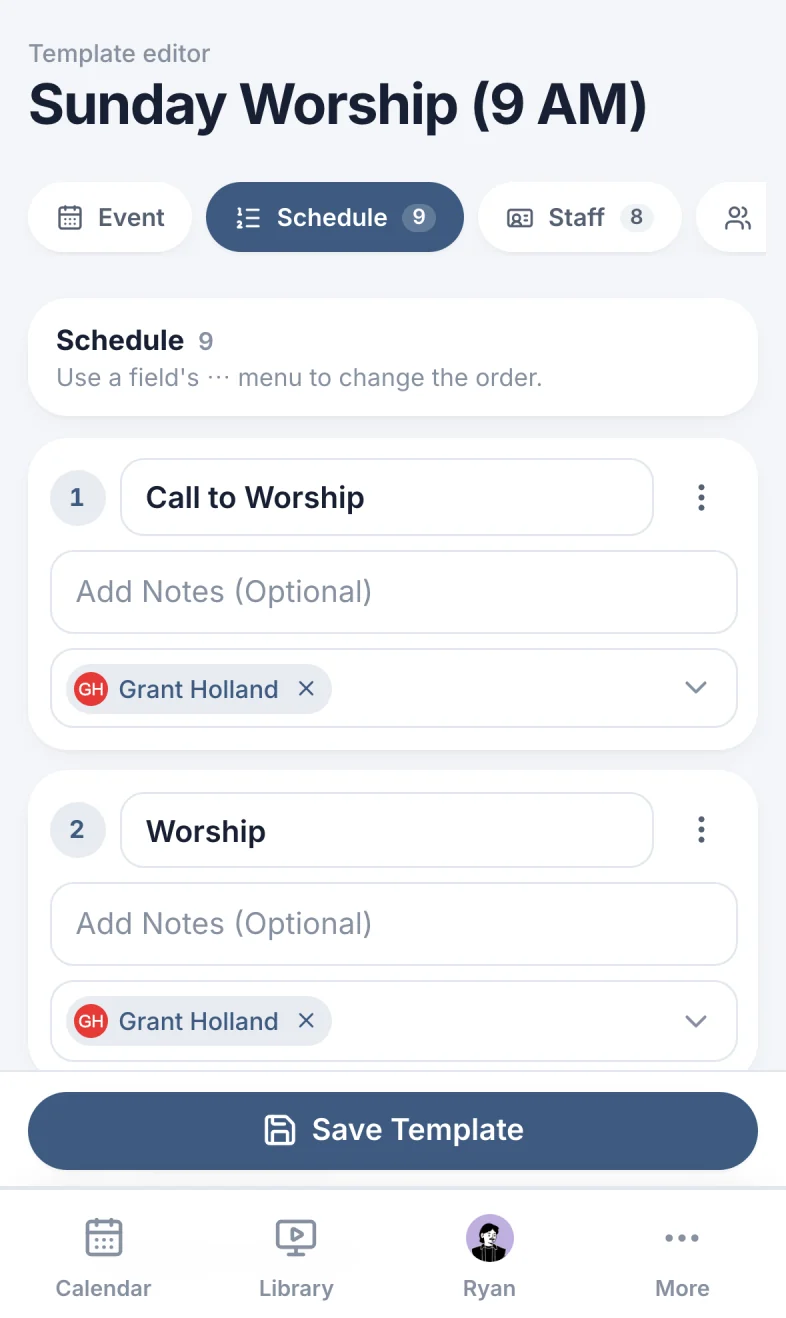
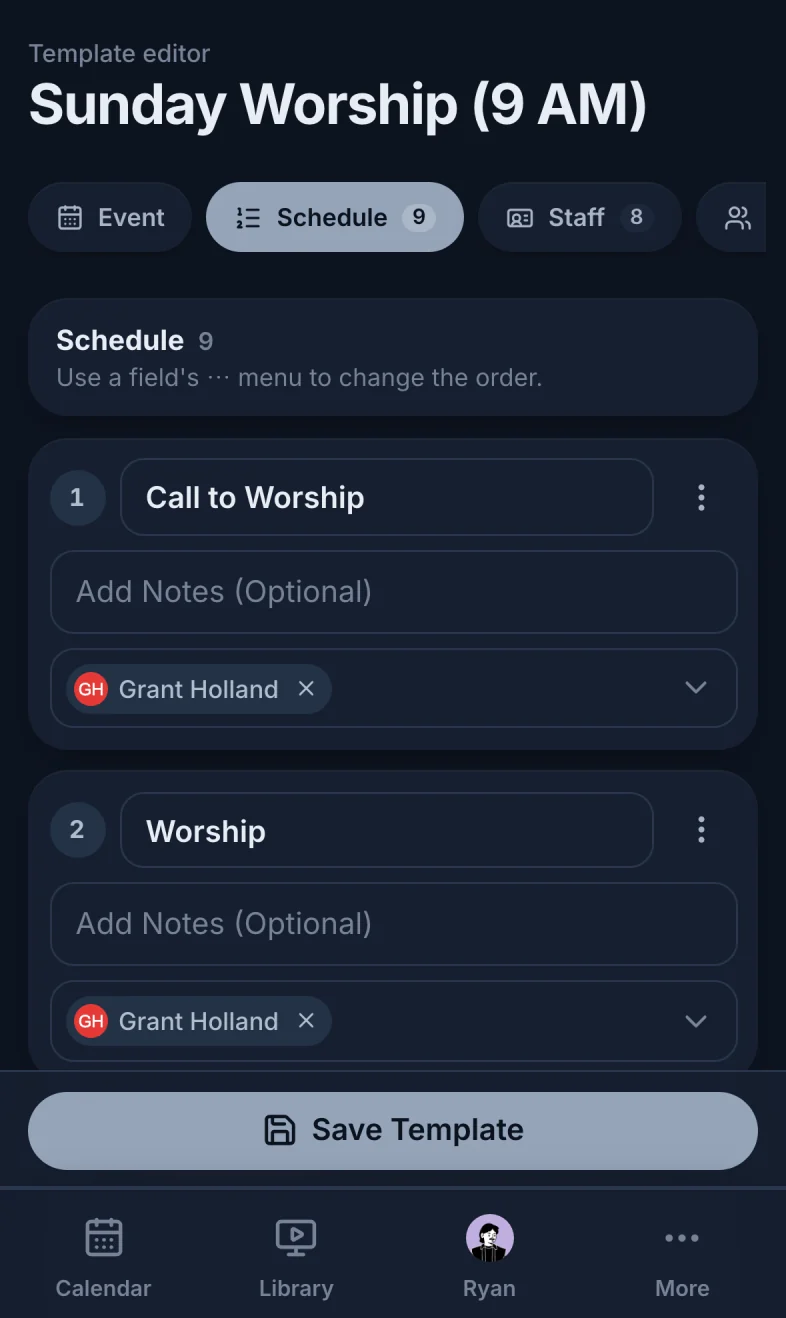
The tabs are a row you scroll sideways (marker 1 on the screenshot), and Save Template sits at the bottom (marker 2 on the screenshot).
How a template becomes events
Events are made from a template in three ways:
- In The Planner: fill in a week and save.
- With Automate: create events automatically: Scheduly creates each event a set number of days ahead.
- By hand: create an event and pick the template.
Each event gets a copy of everything in the template, with the people its rotations pick for that date.
Still have a question?
Email us and we'll help you out.